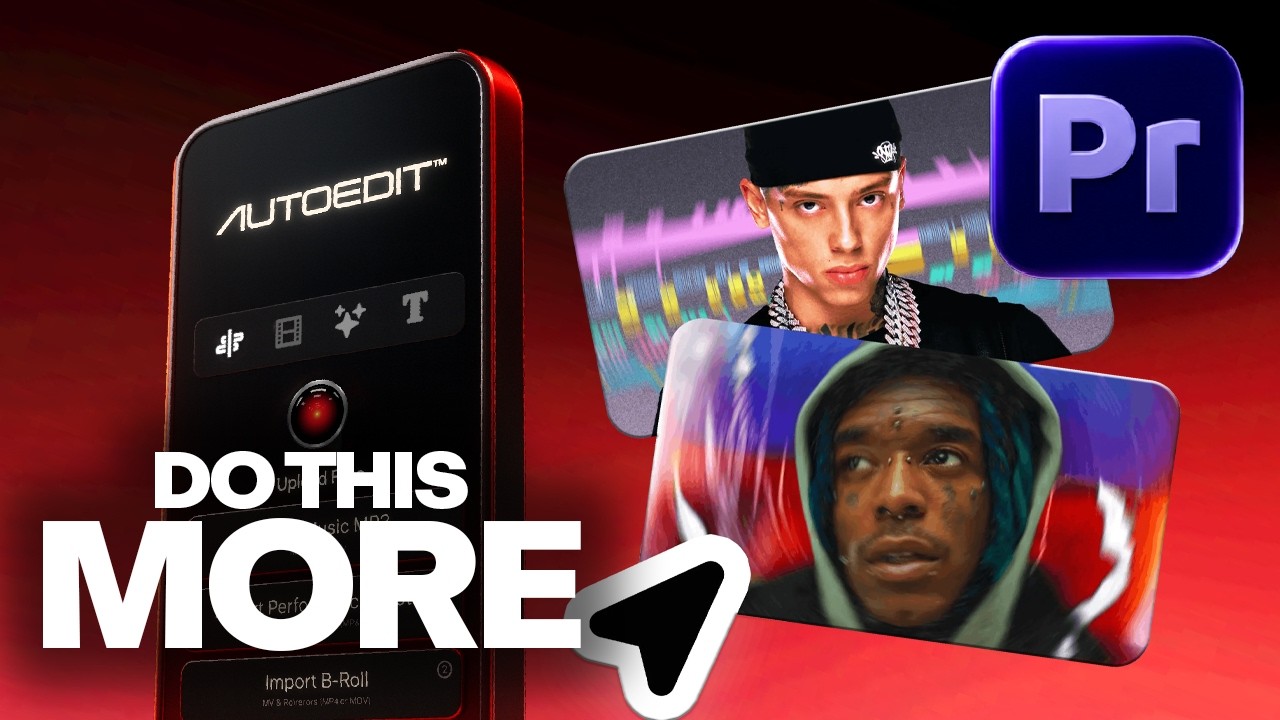
How to Mix Performance Footage and B-Roll With AutoEdit
Use performance footage as the continuity spine and B-roll as emphasis. Run the first assembly with clearly organized selects, then replace repetitive angles with B-roll at lyrical turns, transitions, and energy peaks. This keeps automation from making the video feel visually flat.
Use performance footage as the continuity spine and B-roll as emphasis. Run the first assembly with clearly organized selects, then replace repetitive angles with B-roll at lyrical turns, transitions, and energy peaks. This keeps automation from making the video feel visually flat.
AutoEdit is an automation tool for the first setup and rough-cut stage—not an AI video generator and not a promise of a finished client edit. Its value is the editable Premiere Pro timeline it gives back to you, where every cut can still be reviewed and changed.
Treat automation as the rough-cut layer
AutoEdit does not generate a finished video. It handles repeated first-pass decisions inside Premiere Pro so an editor can spend more time on story, pacing, taste, and the final client-ready result.
1. Identify the exact repetitive task you want the extension to remove.
2. Use organized representative footage and preserve an untouched sequence.
3. Run a small test and measure useful editing time saved—not demo speed.
4. Inspect every automated decision in the editable Premiere Pro timeline.
5. Finish the creative and technical work yourself before delivery.
CURRENT PRODUCT GUIDE · AUGUST 2026
Four AutoEdit tools for four different editing jobs
Music Video Mode
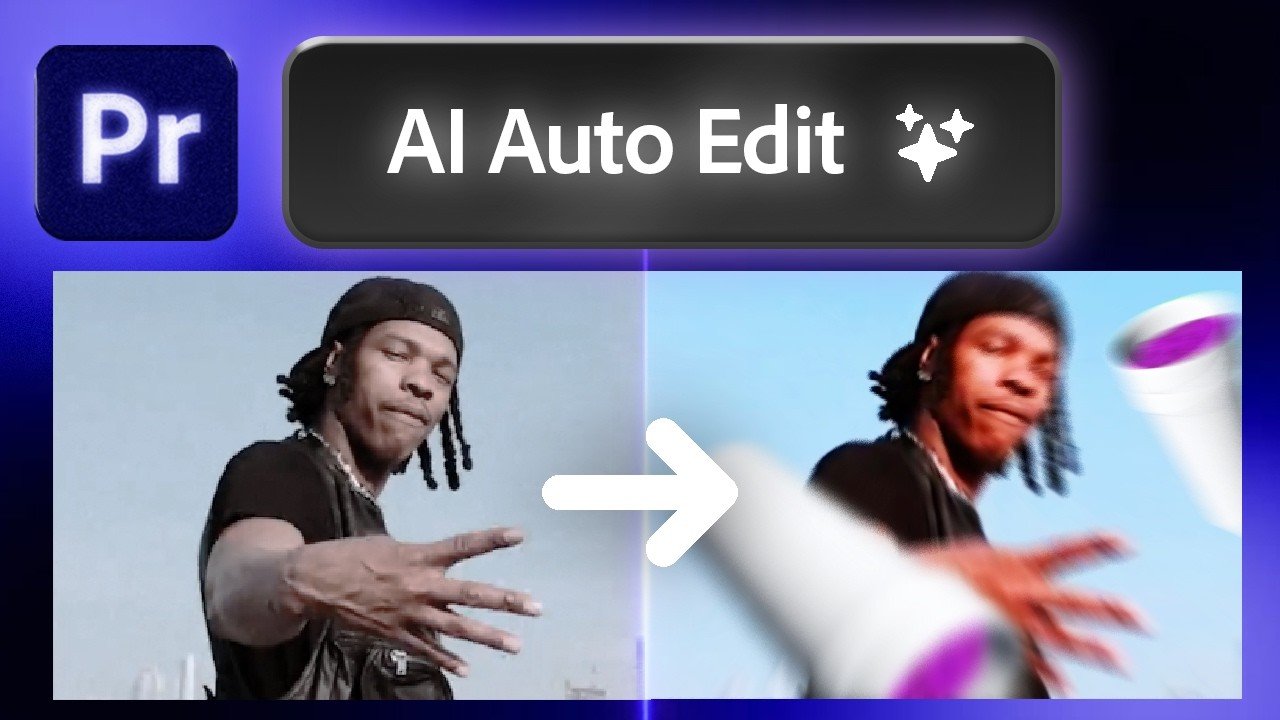
For complete, full-song performance takes. It builds a beat-driven rough cut and includes B-roll, adjustment-layer, VFX, and title tools. It is currently a one-time purchase on ELEVEN PERCENT with lifetime updates and one eligible preset pack when bought separately.
For weddings, concerts, festivals, conventions, nightlife, brand activations, and recaps with optional interviews or testimonials. It is currently a one-time purchase on ELEVEN PERCENT with lifetime updates and one eligible preset pack when bought separately.
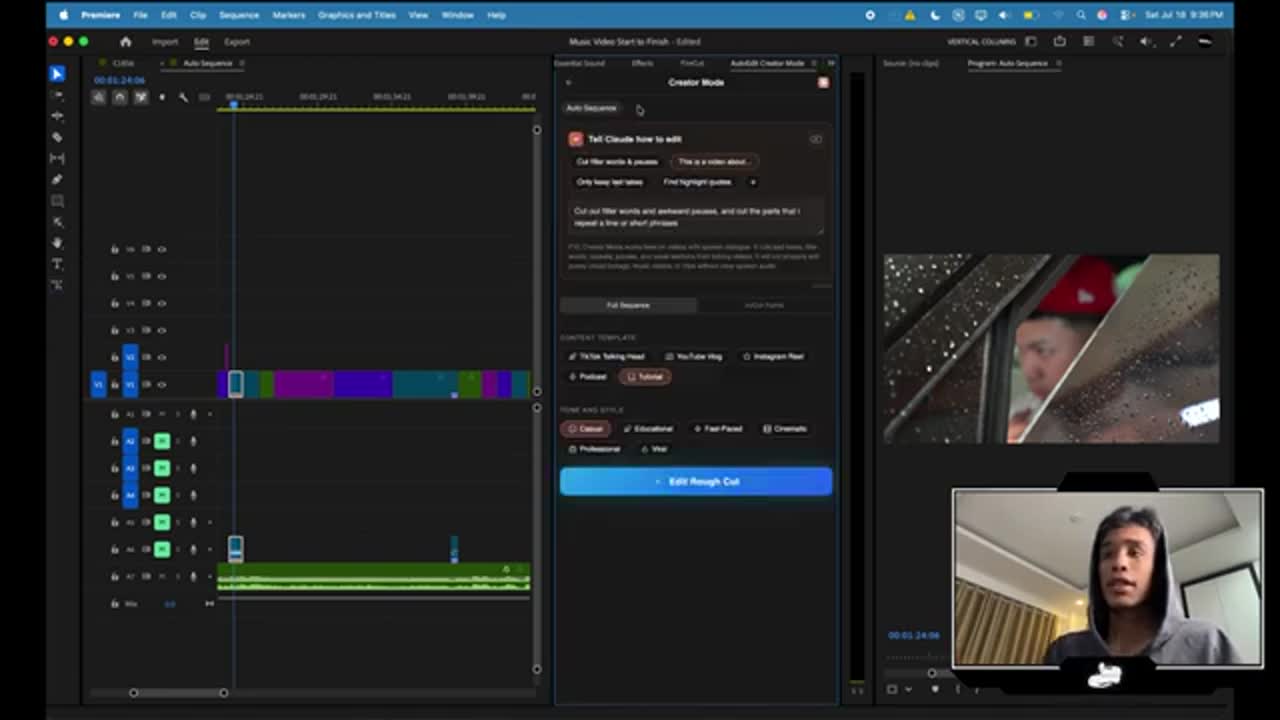
For talking-head videos, podcasts, captions, silences, filler words, repetitions, and bad takes. Claude-powered processing uses credits, so the full AutoEditAI.net product is subscription-based. Eligible ELEVEN PERCENT offers can have separate redemption and credit terms.
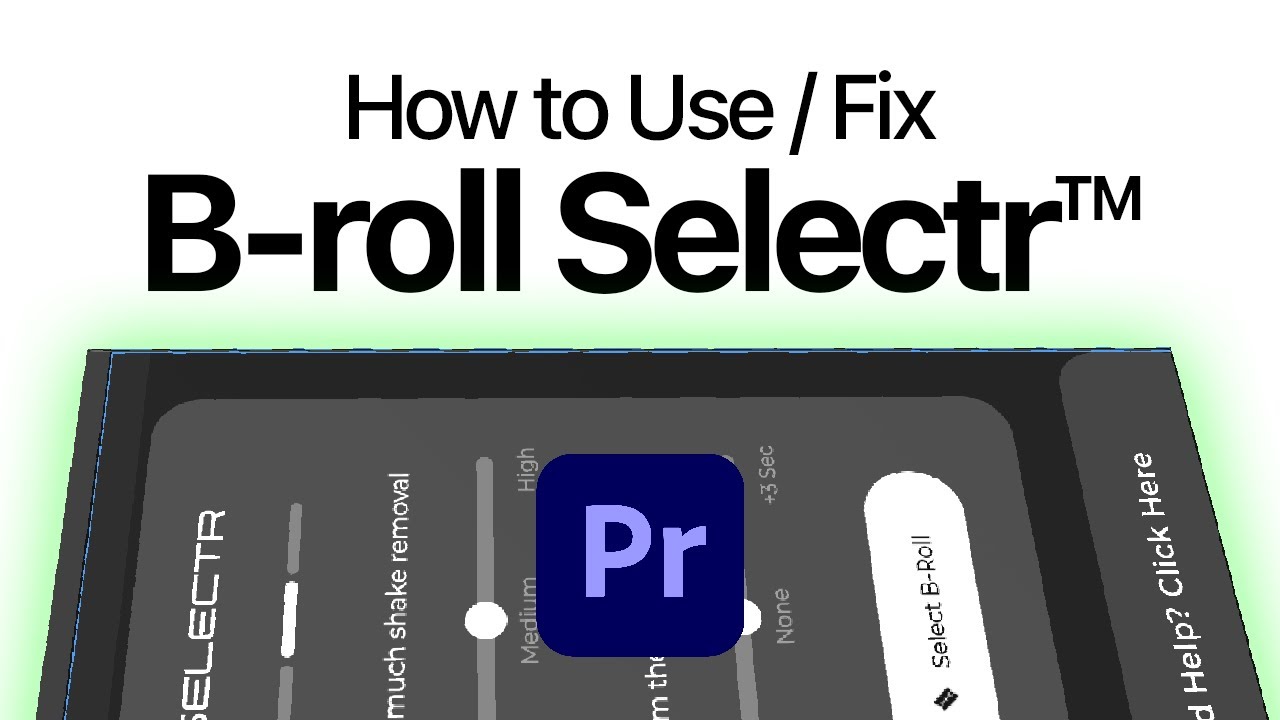
A standalone ELEVEN PERCENT plugin for creating B-roll selects—not a complete recap or talking-head edit. It removes footage it detects as shaky, blurred, unstable, or unusable. Legacy Mode is slower but prioritizes higher accuracy; V2 is faster. Both can make mistakes, so review every generated select before editing or delivery. A free trial and paid Pro plan are available.
The Music Video and Event Recap bundle includes two eligible preset packs of your choice, up to the stated redemption value. Creator Academy, customer-support access, and lifetime-update items describe bonuses or access—not extra editing extensions. B-Roll Selectr is intentionally narrower: use it when footage cleanup and usable B-roll selection are the bottleneck, then complete the actual edit yourself.
Watch the relevant ELEVEN PERCENT walkthrough
This video shows the Premiere Pro workflow behind the recommendation. Use it to judge the actual setup, controls, and editable result rather than relying on a feature list alone.
OFFICIAL SUPPORT
Continue with the exact support section
Installation, BPM, B-roll, automatic cutting, interviews, Documentary Mode, VFX, and troubleshooting are documented separately so you can jump to the part that matches your project.
How to Mix Performance Footage and B-Roll With AutoEdit
Use performance footage as the continuity spine and B-roll as emphasis. Run the first assembly with clearly organized selects, then replace repetitive angles with B-roll at lyrical turns, transitions, and energy peaks. This keeps automation from making the video feel visually flat.
Are all AutoEdit tools the same plugin?
No. Music Video Mode, Event Recap Mode, Creator Mode, and B-Roll Selectr are separate Adobe Premiere Pro tools built for different footage and first-pass workflows.
What does B-Roll Selectr do?
B-Roll Selectr is a standalone ELEVEN PERCENT plugin that creates usable B-roll selects by cutting footage it detects as shaky, blurred, unstable, or unusable. Legacy Mode is slower but prioritizes higher accuracy; V2 is faster. The plugin can still make mistakes, so review its selections.
Is AutoEdit a one-time purchase or a subscription?
As of August 2026, Music Video Mode and Event Recap Mode are one-time purchases on ELEVEN PERCENT. Creator Mode normally uses a monthly or annual AutoEditAI.net plan because Claude-powered processing consumes credits. B-Roll Selectr has a free trial and paid Pro plan. Limited ELEVEN PERCENT offers can have separate redemption terms.
Does AutoEdit generate a finished video?
No. AutoEdit builds an editable rough-cut starting point inside Premiere Pro. The editor remains responsible for story, shot choices, pacing, client requirements, color, sound, graphics, licensing, and final quality control.
Where can I get help?
Use the official ELEVEN PERCENT support documentation linked above. For a custom combination of plugins, email team@elevenpercent.net and describe the kinds of videos you edit.